NextBuy documentation
NextBuy is a store child theme for Divi 5 and WooCommerce. It installs ready-made Theme Builder templates for every page of a shop, with five home designs to choose from, and adds five Divi 5 modules: a Side Cart with a free-shipping bar, a Quick View, Product Filters, a live Product Search and an Account Link. It also adds colour, image and button swatches to WooCommerce's product forms. See it on the live demo.
Requirements and installation
| Requirement | Minimum | Tested up to |
|---|---|---|
| WordPress | 6.5 | 7.1 |
| PHP | 7.4 | 8.4 |
| Divi | Divi 5 theme | 5.19 |
| WooCommerce | A current version | 11.3 |
NextBuy is a child theme of Divi, so the Divi theme must be installed (it need not be active). It is Divi 5 only. WooCommerce is a free plugin; NextBuy activates and runs without it, and asks for it where a feature needs it.
- In Appearance > Themes > Add New > Upload Theme, upload the NextBuy zip.
- Activate NextBuy.
- Open Appearance > NextBuy, choose a home design and install the templates (below).
Your Divi settings, Theme Builder templates and pages stay as they are. NextBuy adds to them; it changes nothing you already have unless you ask it to. It installs no plugins and imports no demo content: the templates show your own products, categories and pictures.
Templates
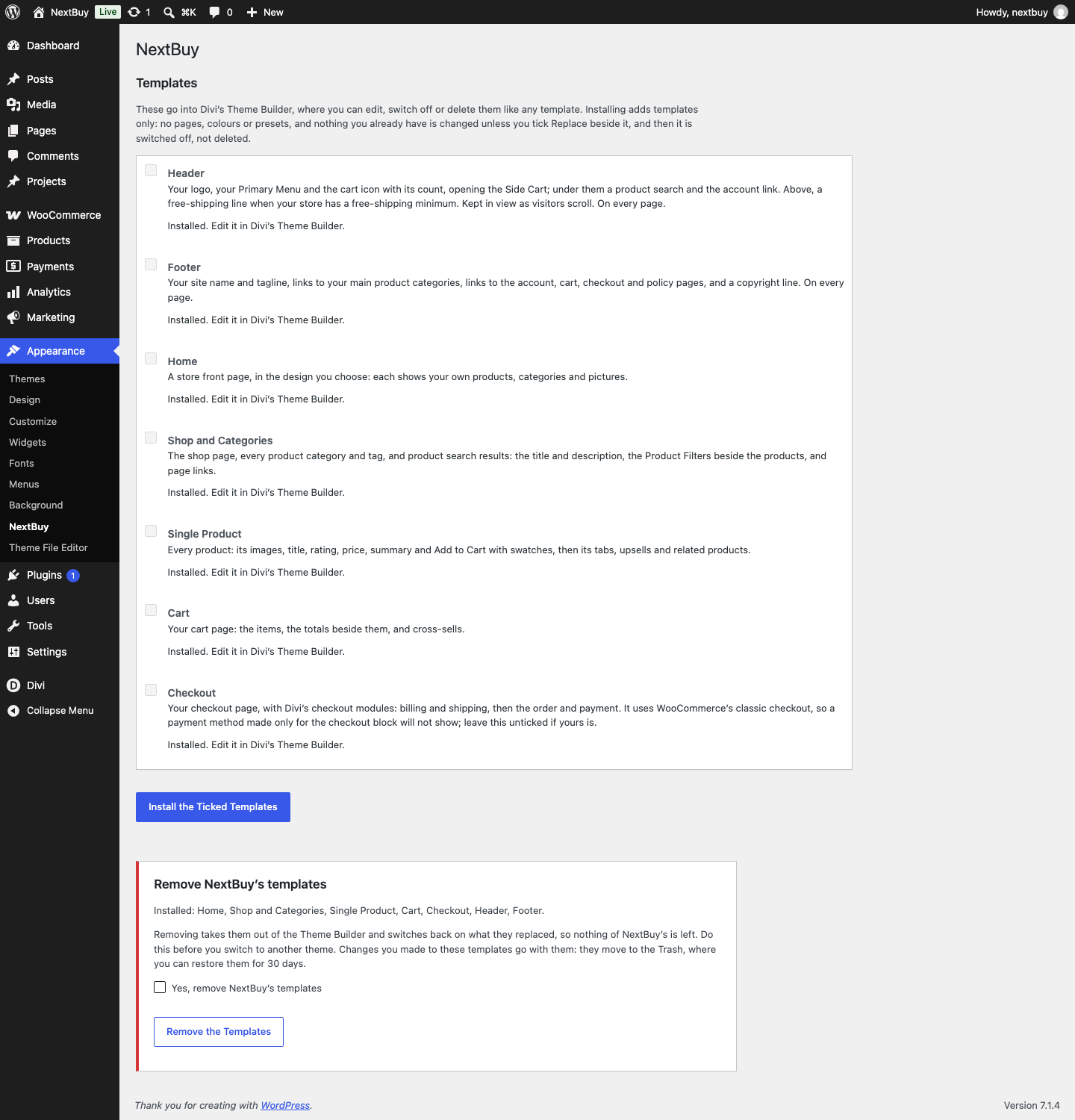
Appearance > NextBuy lists seven Theme Builder templates. Tick the ones you want and click Install the Ticked Templates. They go into Divi > Theme Builder, where you edit, switch off or delete them like any template.
| Template | Where it applies | What it shows |
|---|---|---|
| Header | Every page | Your logo, your Primary Menu and the cart icon with its count, opening the Side Cart; under them a product search and the account link. Above, a free-shipping line when your store has a free-shipping minimum. Kept in view as visitors scroll |
| Footer | Every page | Your site name and tagline, links to your main product categories, links to the account, cart, checkout and policy pages, and a copyright line |
| Home | The home page | A store front page in the design you choose (below) |
| Shop and Categories | The shop, every product category and tag, product search results | The title and description, the Product Filters beside the products, and page links |
| Single Product | Every product | Its images, title, rating, price, summary and Add to Cart with swatches, then its tabs, upsells and related products |
| Cart | The cart page | The items, the totals beside them, and cross-sells |
| Checkout | The checkout page | Billing and shipping, then the order and payment |
- If you already have templates for the same pages, the screen says which would overlap. Yours are kept unless you tick Replace beside one, and even then yours is switched off, not deleted.
- If your home page has content of its own, Home starts unticked. Ticked, the template shows in front of that content.
- The logo in the Header template is Divi's logo (Divi > Theme Options) or WordPress's site logo; with neither, your site title.
- The Cart and Checkout templates need WooCommerce's cart and checkout pages, set in WooCommerce > Settings > Advanced. The order-received and pay-for-order pages keep the header and footer but show WooCommerce's own content, full width.
- A template already installed is left as it is. To start one again, delete it in the Theme Builder and install it here.
Home designs
Choose one before installing Home. Each shows your own products, categories and pictures, and every word and picture can be changed in Divi.
| Design | What it shows |
|---|---|
| Classic | A welcome with a Shop button, your categories, new arrivals and best sellers, then your shipping, returns and payment promises |
| Spotlight | A welcome beside a large picture from your store, then featured products, three categories and what is on sale |
| Departments | Your categories first, as tiles with their pictures and descriptions, then best sellers and the best rated |
| Lookbook | A full-width picture from your store behind the welcome, two categories told as stories, and new arrivals in larger cards |
| Offers | A sale banner in your primary colour with your biggest discount, what is on sale, free shipping and new arrivals, then best sellers |
See all five on the demo's Home Designs page.
Removing the templates
Appearance > NextBuy > Remove NextBuy's templates takes them out of the Theme Builder and switches back on whatever they replaced, so nothing of NextBuy's is left. Do this before you switch to another theme. Changes you made to the templates go with them: they move to the Trash, where you can restore them for 30 days.
Swatches
On a variable product, NextBuy replaces WooCommerce's dropdowns with swatches. WooCommerce's own dropdown stays in the form, hidden, so prices, stock and images change as a shopper chooses, exactly as they do with the dropdown.
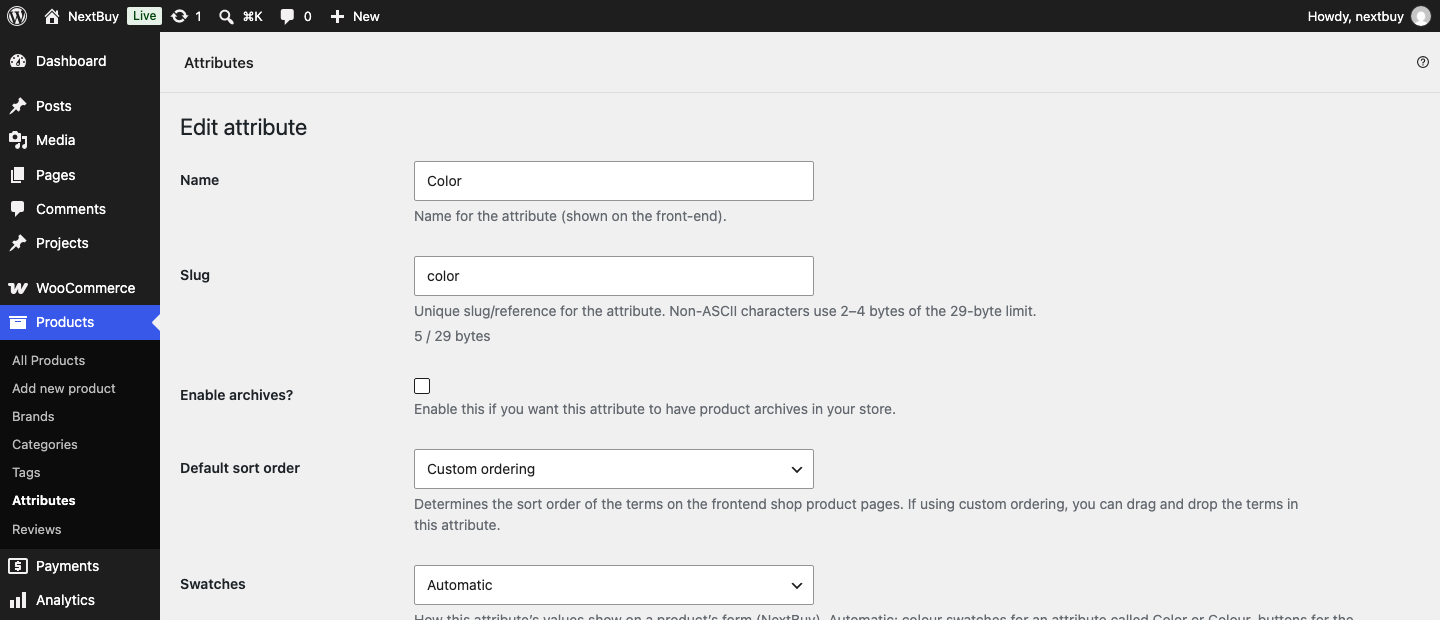
Choose how each attribute shows under Products > Attributes, in its Swatches setting:
| Style | What shoppers see |
|---|---|
| Automatic | Colour swatches for an attribute called Color or Colour; buttons for the rest. The default |
| Buttons | A labelled button for each value |
| Colour swatches | A round swatch in each value's colour |
| Image swatches | Each value pictured by its variation's image |
| Dropdown | WooCommerce's own dropdown |
- A value's colour is set on its own edit screen, under Swatch colour. Left empty, a value named after a colour, such as Navy, uses that colour; otherwise it shows as a labelled button.
- A product's own attributes (made on the product, not under Products > Attributes) use Automatic.
- Values not available in the chosen combination are crossed out, as WooCommerce marks them in its dropdown.
Modules
All five are in the Divi builder under NextBuy, show your real products on the builder canvas, and take every Divi Design and Advanced setting. The templates already use them; add them anywhere else as you would any module.
Side Cart
A drawer with the cart's items, their quantities, the subtotal, and View Cart and Checkout buttons. Shoppers change quantities and remove items without leaving the page.
- Open From the Menu's Cart Icon makes the cart icon of Divi's Menu module open the drawer instead of going to the cart page, and keeps its count current. The Header template uses this.
- Open When a Product Is Added opens it after Add to Cart, on shop pages and product pages alike.
- Show Free Shipping Progress shows how much more to spend for free shipping, from your store's Free Shipping method with a minimum order amount. It is hidden when the store has none.
- Show Cart Icon, Show Item Count, Drawer Side, Heading and Empty Cart Message set the rest.
Quick View
Adds a Quick View button to every product on the page. It opens the product's image, rating, price, short description and its own Add to Cart form, swatches included, in a window. Adding stays on the page and opens the Side Cart if the page has one.
Place one Quick View module on a page and it serves every product list on that page. Button Position puts the button over each image as a round icon, or below the product with its text. Each part of the window can be switched off, and Show Link to the Product adds a link to the full page.
Product Filters
Filters for the products listed beside it: categories, a price range and each attribute, such as Color and Size. Choosing a filter updates the products without reloading the page, and the address changes too, so a filtered page can be shared or bookmarked.
- Several Values Chosen sets whether two values of one attribute mean Any (Red or Blue) or All (both).
- Show Counts shows how many products each value would leave; Hide Values With No Products leaves out values that would leave none.
- Attributes chooses which attributes to offer; none ticked offers all of them.
- Show Filters in Use lists the filters chosen, each with a button to remove it, and Clear All.
- On phones the filters fold behind a button; Phone Button Text sets its words.
It uses WooCommerce's own filtering, the same as WooCommerce's filter widgets, so the filtered pages are the shop's own pages.
Product Search
A search field that suggests products as the shopper types, with their images and prices, and a link to all the results. Results open in the Shop and Categories template. Number of Suggestions, Show Images, Show Prices and Placeholder set what it shows. It suggests what WooCommerce's own search would find, leaving out products hidden from search.
Account Link
An icon linking to the account page, reading Sign in or My account as the shopper is signed out or in. Show Text and the two texts set its words.
Working with DiviRise
NextBuy works on its own. With the DiviRise plugin active as well:
- DiviRise's Starter Layouts screen gains three NextBuy designs, for the My Account, Login and Thank You pages, in the store's look. Each installs as a Divi Library layout, ready to choose on DiviRise's screens.
- Sign-in links (the header's account link and the Side Cart's) go to DiviRise's login page.
- DiviRise's pages are DiviRise's: NextBuy styles no account, login or order-received page of its own, so nothing overlaps.
DiviRise follows Divi's primary colour, as NextBuy does, so the two match without any setting.
Privacy
NextBuy collects no personal data, sets no cookies of its own, makes no requests to other sites and sends nothing to DiviRise. The cart, account and checkout are WooCommerce's own, under WooCommerce's privacy text.
Troubleshooting
A payment method is missing at checkout
The Checkout template is built from Divi's checkout modules, which use WooCommerce's classic checkout. A payment method made only for WooCommerce's checkout block will not show there. Use the payment provider's classic checkout option, or leave the Checkout template unticked and keep WooCommerce's checkout block.
The free-shipping bar does not show
It needs a Free Shipping method that requires a minimum order amount, in the shipping zone of the shopper's address (WooCommerce > Settings > Shipping). It is hidden when free shipping needs only a coupon.
Swatches show as a dropdown
Check the attribute's Swatches setting under Products > Attributes. Colour swatches need a colour for each value, or values named after colours.
A header or footer of my own looks unstyled
A Theme Builder header or footer built with Divi 4 loses its colours and spacing on pages built entirely in Divi 5, as NextBuy's are. Convert it to Divi 5 under Divi > Divi 5 Migrator, or open it in the Theme Builder and save it.
For developers
| Filter | What it changes |
|---|---|
divirise_nextbuy_swatch_type | The swatch style for an attribute on a product |
divirise_nextbuy_free_shipping_method | Which Free Shipping method the free-shipping bar measures against |
divirise_nextbuy_account_url | Where the Account Link points |
Support
Email help@divirise.com; we reply within 48 hours. Say which page the problem is on and what you expected to see.